Portable Power Station Troubleshooting: A Field Fault Record
Write the record before anyone opens the housing. Sizing and upkeep live on the power and lighting hub. Use this page when a unit has already failed a job. Each row applies only to the manual edition named in that cell.
Scroll horizontally to see all columns.
| What the crew sees | First place in the manual | External check | Stop |
|---|---|---|---|
| Screen dark, no obvious alarm | Power on/off | Press the main power button once, then wait to see if a sleeping display returns | Battery-failure icon stays on, or an alarm remains after a restart |
| Main power is on, one port is dead | Output buttons, idle shutdown, overload table | Turn that port’s button on, remove the load if an overload mark is showing | The manual’s overload row says to restart only after the load is off, or a fault code says to call |
| Plugged in, charge level does not move | Charging section and temperature rows | Confirm the charging icon, and press a popped reset or overload switch only after the manual’s condition is met | You cannot confirm there is no product failure, or a temperature row says to wait |
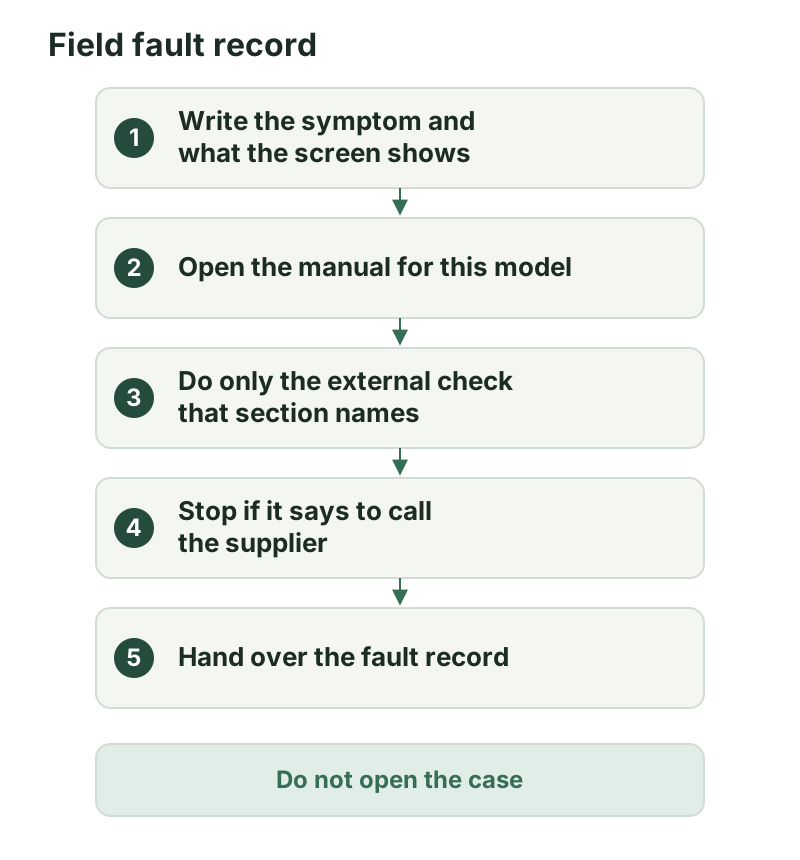
Write down the symptom first
Copy four things onto the sheet before the next button press: model, serial if it is printed on the housing, the manual title and edition in the case, and a quote of what the screen or indicator is doing. “Dead” is not a quote. “LCD off, no icon” is. “Overload mark flashing on the AC row” is.
Use the manual that matches the nameplate. The checks below are taken from the EcoFlow DELTA 2 User Manual V1.0, the EcoFlow DELTA 2 Max User Manual V1.0, and the Jackery Explorer 3000 Pro User Manual. A later printing can move a row. If the book in the lid is a different edition, follow that book and write its title on the record.
Storage charge and periodic cycling stay on the maintenance plan. Use that plan when the unit is healthy and a calendar task is due.
A dark screen is often standby
On these three editions, off, asleep, and shut down after a timer are different states. Holding the power button is the off command on the EcoFlow manuals, so a long press is the wrong first move when you want the screen back.
Scroll horizontally to see all columns.
| Manual | How it turns on | What a dark screen can mean | Timed shutdown |
|---|---|---|---|
| DELTA 2 V1.0 | Press the main power button once. The LCD lights and the battery level icon shows. Hold that button at least 3 seconds to turn the unit off. | After 5 minutes unused, the LCD sleeps. It lights again when you use the unit. | Default standby is 2 hours. With the output power buttons off and no other load, the unit shuts off. The app can change that duration. |
| DELTA 2 Max V1.0 | Press once. The LCD lights and the main power indicator breathes white. Hold at least 3 seconds to turn off, and the LCD goes off with it. | After 5 minutes unused, it hibernates and the LCD goes off. Using the unit brings the LCD back. | Same 2-hour default when the output buttons are off and there is no load. |
| Explorer 3000 Pro | Press the main power button. The working indicator lights and the LCD comes on. Hold the main power button until the working indicator turns off to shut down. | After 2 minutes with no operation, the display hibernates. | Default standby is 2 hours if the other output switches are off and there is no load. The app can change that time. |
On the Explorer 3000 Pro, press the main power button twice after the display is on if you need the LCD to stay lit while the unit is charging or discharging. In that steady-on mode, with no charge and no load, the display still turns off after 2 hours.
If a single press brings the screen back, record “sleep or standby” and the button you pressed. If the screen stays dark and a battery-failure mark is lit, leave the power section and use the stop rules further down.
A dead port may still be switched off
Main power and the port are separate switches on these manuals.
On DELTA 2, after the product is on, press the USB power button, the 12V DC power button, or the AC power button once to turn that group on, and press it again to turn it off. On the Explorer 3000 Pro, turn main power on first, then press the AC button for the AC outlets or the DC button for the USB and car ports.
Two idle rules look like a failed inverter if nobody writes down the time:
- DELTA 2 and DELTA 2 Max: after 12 hours with no load on the AC output ports, the AC power button shuts down on its own. On DELTA 2, leaving the USB power button or the 12V DC output button on keeps the product from shutting off automatically. On DELTA 2 Max, leaving the USB or DC power button on does the same. Those notes are about the product staying on. The 12-hour line is about the AC button. Record which one you observed.
- Explorer 3000 Pro ships with energy saving on. When AC output is at or below 25 W, USB output at or below 2 W, or car output at or below 2 W, all outputs turn off after 12 hours. A phone charger or a small work light can sit under those thresholds. To leave energy saving, long-press the AC button and the main power button together until the energy-saving icon disappears. The same long-press turns the mode back on when the icon lights. Write down whether you changed it.
The troubleshooting tables in the DELTA 2 and DELTA 2 Max V1.0 manuals give the same actions for the indications below. “Flashing” is the manual’s word for the indicator state.
Scroll horizontally to see all columns.
| Indication | What the manual says to do |
|---|---|
| USB-A overload protection | Remove the device on the USB-A port. |
| USB-C overload protection | Remove the device on the USB-C port. |
| AC output overload protection | Remove the overloaded device and restart the product. Keep appliances within rated power. The row points to the X-Boost section for the power limits on that edition. |
| Car charger overload protection | Remove the device on the car charger. The manual says normal operation returns on its own. |
| Fan blockage | Check whether foreign material is blocking the fan. |
| AC high temperature protection | Confirm the fan inlet and outlet are clear. If they are, the manual says operation returns after the product cools. |
| AC low temperature protection | Use the product at the optimum environmental temperature the manual names. |
| High temperature charging protection | Charging resumes once the battery cools. |
| High temperature discharging protection | Power resumes once the battery cools. |
| Low temperature charging protection | Charging resumes once battery temperature rises above 5°C (41°F). |
| Low temperature discharging protection | Power resumes once battery temperature rises above -12°C (10°F). |
| Car charger high temperature protection | The manual says operation returns after the product cools. |
The DELTA 2 specifications table also lists a charging range of 0°C to 45°C (32°F to 113°F) and a discharging range of -10°C to 45°C (14°F to 113°F), with an optimal operating band of 20°C to 30°C (68°F to 86°F). The troubleshooting resume points, 5°C and -12°C, are a different pair of numbers. Follow the row that matches the indication on the screen.
On the Explorer 3000 Pro, a popped AC output reset button means remove the load and press the reset button. High-temperature and low-temperature warnings on that screen are described as self-clearing: the high-temperature warning after the battery cools, the low-temperature warning after the ambient temperature recovers. The manual does not give those warnings a degree threshold in the sentences above.
If the low-temperature mode icon is blinking, the Explorer 3000 Pro manual says the unit can run from -20°C to -10°C with a lower discharge ceiling: 3000 W when remaining charge is 60% or more, 2000 W from 30% to 60%, and 800 W below 30%. Write down the remaining percentage and the ceiling before you call the limit a failure. Keep a cold-shift plan in the deployment notes.
When the load’s rated watts are the question, use the power station sizing guide and the nameplate. An overload row that says “within rated power” needs that number from the load’s own label, and the station’s rated output from the station manual.
Charging checks stay outside the case
On DELTA 2 and DELTA 2 Max, a unit that is charging shows the remaining charging time on the LCD. The charging icon rotates, the remaining battery percentage is on screen, and input power is shown to the right of the circle. If those marks are absent, you do not yet have evidence that charge current is flowing.
Both manuals describe the same AC-input trip: if AC input current stays above 20 A, the X-Stream input starts self-protection and the overload protection switch pops up. After you confirm there is no product failure, press that switch to resume charging. If you cannot make that confirmation from the outside, stop and use the handover. Do not keep resetting a switch that pops again.
On the Explorer 3000 Pro, a popped AC input reset button means remove the AC charge cable and press the reset button. Fault code F6 has its own line in the stop section, because the manual ties that code to the load or the charging plug.
Stop and hand the record to the supplier
Some rows end in a phone call. Do those and then stop pressing buttons.
Scroll horizontally to see all columns.
| Manual | What you see | What the manual says |
|---|---|---|
| DELTA 2 V1.0 and DELTA 2 Max V1.0 | Battery failure indicator stays on | Contact EcoFlow customer service. |
| DELTA 2 V1.0 and DELTA 2 Max V1.0 | An alarm prompt stays on the LCD after a restart | Stop using the unit immediately. Do not charge it or discharge it. Contact EcoFlow customer service. |
| Explorer 3000 Pro | Any code from F0 through F9 | Contact Jackery after-sales. The manual lists F6 and F9 with an extra step first. |
| Explorer 3000 Pro | F6 | Remove the load or unplug the charging plug. If the unit does not restore itself, contact after-sales. |
| Explorer 3000 Pro | F9 | Remove the load. If the unit does not recover itself, contact after-sales. |
The Explorer 3000 Pro manual sets up codes F0 through F9 so a user can report them. It does not define a meaning for each code in that paragraph. Write the code you see. Do not invent a failure name for F6 or F9.
Tag the unit out of service under your own site rules when the stop row says to stop. Put the tag number on the fault record so the next shift does not plug it back in.
Field fault record
Copy this sheet, or download the fault record CSV. The same file is listed on the resources page.
Scroll horizontally to see all columns.
| Field | What to write |
|---|---|
| Date, site, asset ID | When and where, and the tag on the unit |
| Model and serial | From the nameplate, not from memory |
| Manual title and edition | The book you actually opened |
| Symptom | No start, no output, no charge, alarm, or a short quote |
| Screen or indicator | The words or icon, including flashing or steady |
| Port or button | AC, USB-A, USB-C, 12 V, car, or charge inlet |
| Load connected | Device name and rated watts if the nameplate has them |
| External check | The manual section and what you did |
| Result | Cleared, still present, or stopped |
| Handed to | Person and supplier contact |
| Status | In service, out of service, or waiting |
If an overload clears, still note the load and whether its rated watts sat inside the station’s rated output.
Conditions and limits
These statements are the manufacturers’ instructions for the three editions named above. SavvySkull has not tested the units. Leave the housing closed, leave the cells alone, and keep each reset step on the brand that printed it.
If the manual in the case disagrees with a row here, the manual wins, and the record should say so. If the model is not one of these three, stop at “identify the manual” and follow that book. Temperature figures are the ones printed in the sections cited. They are not a forecast of runtime in cold weather, and they are not a substitute for the storage routine on the maintenance plan.
Downloads
- Portable power station fault record (CSV) CSV Blank handover sheet. Quote the screen and name the manual section you followed.
Sources and versions
- EcoFlow DELTA 2 User Manual V1.0 (EN) , EcoFlow Supports: Power button, sleep and standby, output buttons, 12-hour AC idle shutdown, AC input overload switch above 20A, charging display, troubleshooting indications, battery-failure and alarm stop rules, charging temperature 0°C to 45°C
- EcoFlow DELTA 2 Max User Manual V1.0 , EcoFlow Supports: Power button and breathing indicator, hibernation, 12-hour AC idle shutdown, AC input overload switch above 20A, charging display, troubleshooting table matching the actions cited here, battery-failure and alarm stop rules
- Jackery Explorer 3000 Pro User Manual (JE-3000A) , Jackery Supports: Power and output buttons, 2-minute display hibernation, 2-hour standby, energy-saving shutdown thresholds, fault codes F0 through F9 with F6 and F9 recovery steps, temperature warnings, low-temperature mode discharge limits, AC output and AC input reset buttons
Next steps

Outdoor Equipment Maintenance: Building a Practical Schedule
Build an outdoor equipment maintenance schedule from model manuals: equipment register, trigger types, task types, roles, records, and a downloadable template.
How to Size a Portable Power Station for Outdoor Work
Size a portable power station for outdoor work: list loads, check continuous and surge watts, estimate watt-hours with stated assumptions, and verify charging.

Checklists & Templates
Reusable checklists and templates from SavvySkull guides, each available as a versioned CSV download with no email required.